
Visual Studio Code Remote Development with macchina.io REMOTE
With the latest 2.5.0 release of the macchina.io REMOTE SDK and Tools it is now possible to do remote development with Visual Studio Code on a remote system reachable only via macchina.io REMOTE. While this may not be a super common use case, there are definitely situations where this makes sense. So, how does it work?
Visual Studio Code supports remote development via a SSH connection. While macchina.io REMOTE has supported SSH for a long time (via the remote-ssh wrapper), it was not possible to use remote-ssh for Visual Studio Code remote development because Visual Studio Code has the ssh executable basically hardcoded. From a technical point of view a session could be set up with the help of remote-client and having Visual Studio Code connect via SSH to a port on localhost exposed by remote-client, but this solution was neither very user friendly nor elegant.
So, what has changed now? The latest release of macchina.io REMOTE SDK and Tools includes two new executables. First there is remote-connect. This program opens a connection to a specific TCP port on the remote device and exposes the connection on standard input/output. Now this makes it possible to use remote-connect with the OpenSSH ProxyCommand configuration directive. With ProxyCommand, the SSH client will not open a direct TCP connection to the target, but will instead the connection provided by the command specified in the ProxyCommand directive. In our case, this command is remote-connect.
For example, the following command:
ssh -o 'ProxyCommand remote-connect 188d3d96-b14e-4804-a6c6-4407af5108a8.remote.macchina.io:22' pi@188d3d96-b14e-4804-a6c6-4407af5108a8.remote.macchina.io
will start an SSH session with a remote Raspberry Pi with the specified macchina.io REMOTE host name.
If you’re familiar with macchina.io REMOTE, you will notice that there is no username and password for the macchina.io REMOTE server specified anywhere. Of course, without proper credentials, the remote-connect command will fail to connect. So, how can we specify the credentials? Like the other tools, remote-connect allows passing credentials (username and password, or OAuth 2.0 token) via command-line parameters, via environment variables, or via a configuration file. But with the latest release, there is a new option: the remote-login command. This command will prompt the user for their username and password and then obtain an OAuth 2.0 token from the macchina.io REMOTE server. This token is then stored locally in a file and is accessible to all the remote-* client programs, including remote-connect.
With that, we can set up Visual Studio Code for remote development via macchina.io REMOTE.
First, we add an entry to the SSH client configuration file, ~/.ssh/config:
Host 188d3d96-b14e-4804-a6c6-4407af5108a8.remote.macchina.io
  ProxyCommand remote-connect 188d3d96-b14e-4804-a6c6-4407af5108a8.remote.macchina.io:22
Next, we run remote-login to obtain an authentication token.
Then, in Visual Studio Code, we can start a Remote-SSH session. When asked for the host, we enter pi@188d3d96-b14e-4804-a6c6-4407af5108a8.remote.macchina.io. With the host configured in the SSH client configuration file, and the authentication token obtained with remote-login, Visual Studio code is now able to open an SSH session to the target using remote-connect.
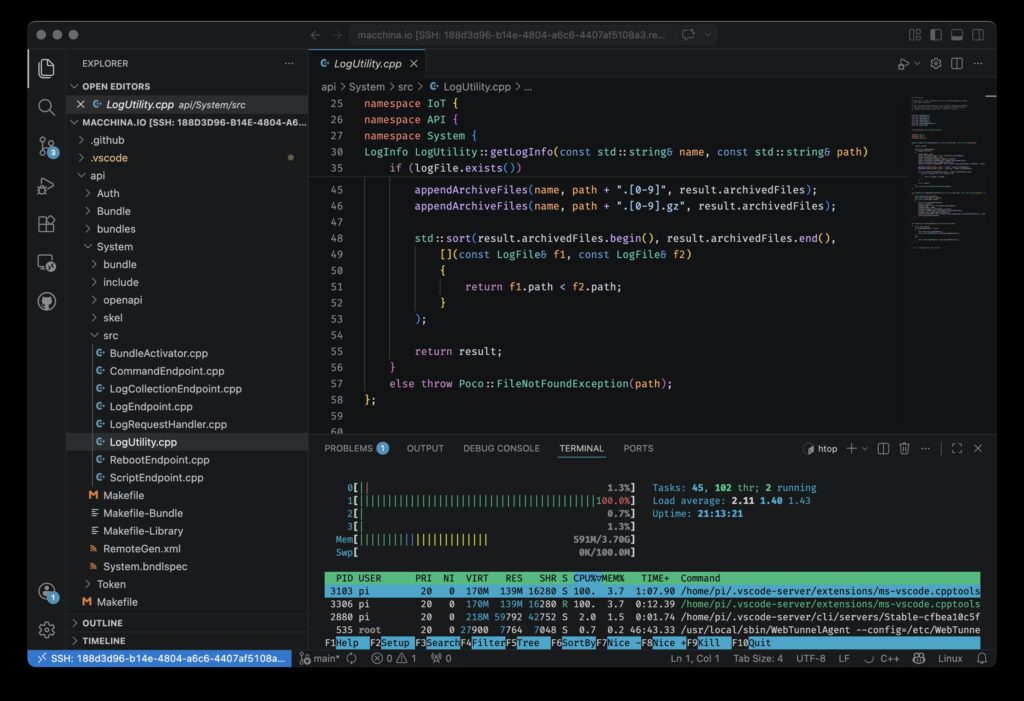
Achievement unlocked: remote development with Visual Studio Code and macchina.io REMOTE.
Want to try it out yourself? Sign up for free!